How to Turn Your Lecture Slides into Flashcards, Quizzes & Notes Automatically
Tutoremy Team
Editorial · April 9, 2026
Your slide deck already contains everything students need to study. The concepts are there. The definitions are there. The examples are there. The problem is that a slide deck is a terrible study tool — it's built for presenting, not for reviewing.
Students know this instinctively. That's why they ask for "a study guide" even when they have access to all your slides. What they're really asking for is the same information in a format that helps them actually learn: flashcards they can quiz themselves with, organized notes they can scan, practice questions they can test against.
The disconnect is that converting slides into those formats takes time you don't have. Manually turning a 40-slide deck into flashcards, notes, and practice questions is a 2-3 hour job. Most teachers just don't do it — not because they don't want to, but because the math doesn't work.
This post walks through a faster way to handle that conversion.
What's Actually in Your Slides (and Why Students Can't Study From Them)
A typical lecture slide deck has three types of content:
1. Headlines and key terms
These are the concepts students need to remember. They're usually in large font, bolded, or highlighted. In a study context, each of these is a potential flashcard front.
2. Supporting explanations
The bullet points, diagrams, and examples that explain the headlines. In a study context, these are the flashcard backs, the notes content, and the source material for practice questions.
3. Visual scaffolding
Slide transitions, decorative images, agenda slides, "any questions?" slides. These help during the live lecture but are noise in a study context.
The conversion task is essentially: extract categories 1 and 2, discard category 3, and reformat into study-ready materials. Simple in theory, tedious in practice.
The Two-Minute Conversion: How It Works
Here's the step-by-step workflow using Tutoremy (which is free to try):
Step 1: Upload your slide deck
Go to tutoremy.ai, create a free account, and upload your file. Tutoremy accepts PowerPoint (.pptx), PDF exports of slides, Google Slides (exported as PDF), and Keynote (exported as PDF). The upload takes a few seconds.
Step 2: Wait about 90 seconds
Tutoremy's AI reads every slide, identifies the key concepts, definitions, and supporting material, and generates three outputs:
- Organized notes — the key ideas from your slides, restructured into a logical reading order with headers and subheaders
- Flashcards — term/definition pairs, concept/explanation pairs, and question/answer pairs pulled from your content
- Practice quiz — multiple-choice and short-answer questions based on what's in your slides
Step 3: Review and edit
This is the step that makes the output yours. Scan the generated materials. Delete any flashcard that's too obvious ("What is the title of Chapter 5?"). Edit a definition that your class uses differently than the textbook. Add a practice question on the one topic you always emphasize in class.
This review takes 3-5 minutes for a typical slide deck. Most of the output is usable as-is, but your expertise catches the 10% that needs adjustment.
Step 4: Share with your class
Export as PDF, share a direct link, or post to your LMS. Students can access the materials on any device without creating an account.
What the Output Actually Looks Like
Let's say you upload a 35-slide deck on the American Revolution for a high school history class.
Generated notes might include: - A summary section covering the key causes (taxation without representation, Enlightenment influence, colonial grievances) - A timeline of major events (Boston Tea Party, Declaration of Independence, Yorktown) - Key figures with their roles (Washington, Jefferson, Franklin, King George III) - Organized by theme, not by slide order — which is often more useful for studying
Generated flashcards might include: - "What was the Stamp Act?" → "A 1765 British law taxing printed materials in the colonies, which sparked widespread colonial protest" - "Who wrote the Declaration of Independence?" → "Thomas Jefferson, with edits by Benjamin Franklin and John Adams" - 15-25 cards depending on the density of your slides
Generated quiz questions might include: - "Which of the following was NOT a cause of the American Revolution? A) Taxation without representation B) The Intolerable Acts C) The Louisiana Purchase D) The Boston Massacre" - 8-12 questions with answer keys
All pulled from YOUR slides — not from a generic AI model's training data about the American Revolution.
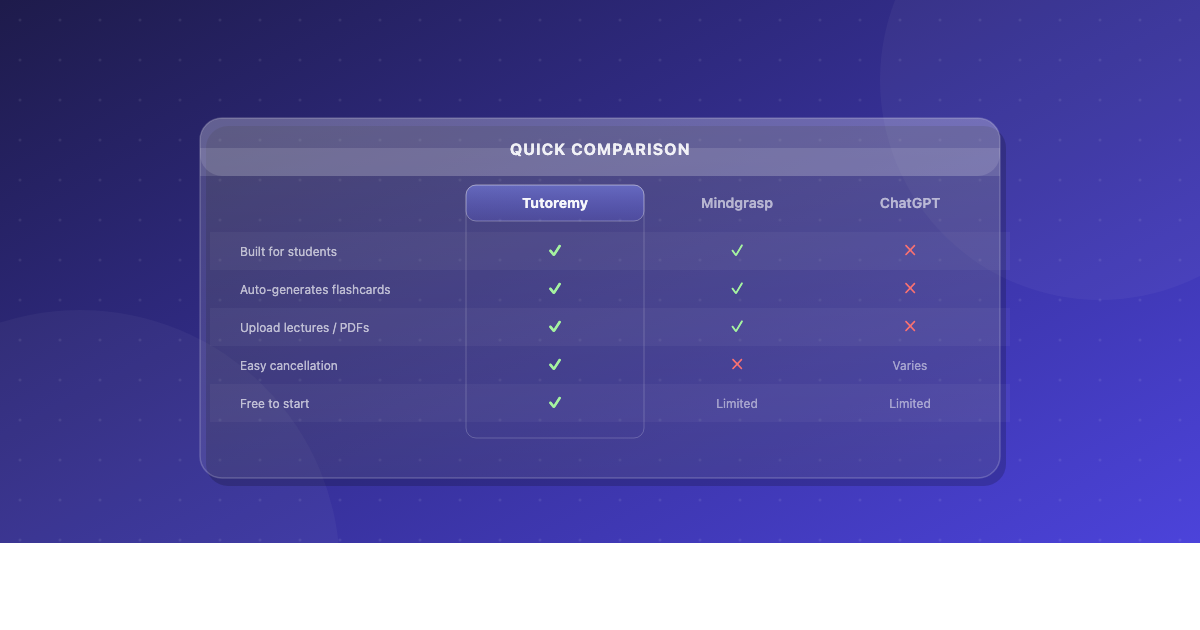
Why This Beats Copy-Pasting Into ChatGPT
You might be thinking: "I could just paste my slide text into ChatGPT and ask it to make flashcards." You could. Here's why dedicated tools work better for this:
Source fidelity
ChatGPT generates flashcards from its training data, supplemented by your input. If your slides use a specific definition for a term that differs from the textbook standard, ChatGPT might silently replace it with the "correct" version. Tutoremy generates exclusively from your uploaded material — if your slide says "mitosis is cell division that produces two identical daughter cells," that's what the flashcard says.
Format handling
Slides contain images, charts, tables, and formatted text that copy-paste into ChatGPT destroys. Upload-based tools read the actual file structure and handle these elements properly.
Consistency
ChatGPT gives different outputs every time you ask. The same prompt might produce 10 flashcards one time and 25 the next, with different formatting. Tutoremy produces consistent, structured output every time.
Sharing
ChatGPT gives you a chat response you have to copy, format, and distribute. Tutoremy gives you shareable outputs — links, PDFs, organized pages — that you can hand directly to students.
For Parents Helping Kids Study
This workflow isn't just for teachers. If your child comes home with a slide deck from their teacher (many schools post these to Google Classroom or Canvas), you can run the same process:
1. Download the slides as PDF 2. Upload to Tutoremy (free) 3. Get flashcards and notes your child can study from 4. Quiz them using the generated practice questions
It turns "I have the slides but I don't know what to study" into "here are the 20 flashcards from today's lecture — let's go through them."
Common Concerns (and Honest Answers)
"Will the AI miss important content?" Sometimes it under-weights a concept that you emphasized verbally but didn't put on a slide. That's what the review step is for. If you notice a gap, add it manually.
"Is it safe to upload my materials?" Tutoremy processes your files to generate study materials and doesn't share your content with other users. Your slides stay yours.
"What if my slides are mostly images?" Image-heavy slides produce thinner text output. If your slides are diagram-heavy with minimal text, you'll get better results by also uploading the lecture recording or a supplementary PDF.
"How much does it cost?" Tutoremy is free to try. You can upload materials and generate study content without paying. There's a paid tier for higher volume usage, but the free tier handles the typical teacher workflow of a few uploads per week.
The Short Version
Your slide deck already has the content. The bottleneck is converting it into formats students can actually study from. Uploading to a tool that does this conversion automatically saves you 2-3 hours per deck and produces flashcards, notes, and quizzes that are immediately shareable.
Try it with one deck. Upload your slides to Tutoremy for free and see what comes out. If 90% of it is usable — and it usually is — you've just reclaimed an afternoon.